Edit company name and address
Where to update your company's legal identity, billing address, and time zone.
Written By Andres Kõiva
Last updated About 7 hours ago
Company-wide settings in Raal
Company-wide settings in Raal are split between two places: the legal identity (used on invoices) lives in Stripe, while operational settings like time zone live in Raal directly.
What's where
Legal company name, billing address, VAT or tax ID: the Stripe billing portal, opened from Billing under Company Account.
Time zone: General under Company Account.
How you pay, who receives invoices, one-time cards and OPS cost display: Billing under Company Account.
Every invoice issued to your company: Invoices, indented under Billing.
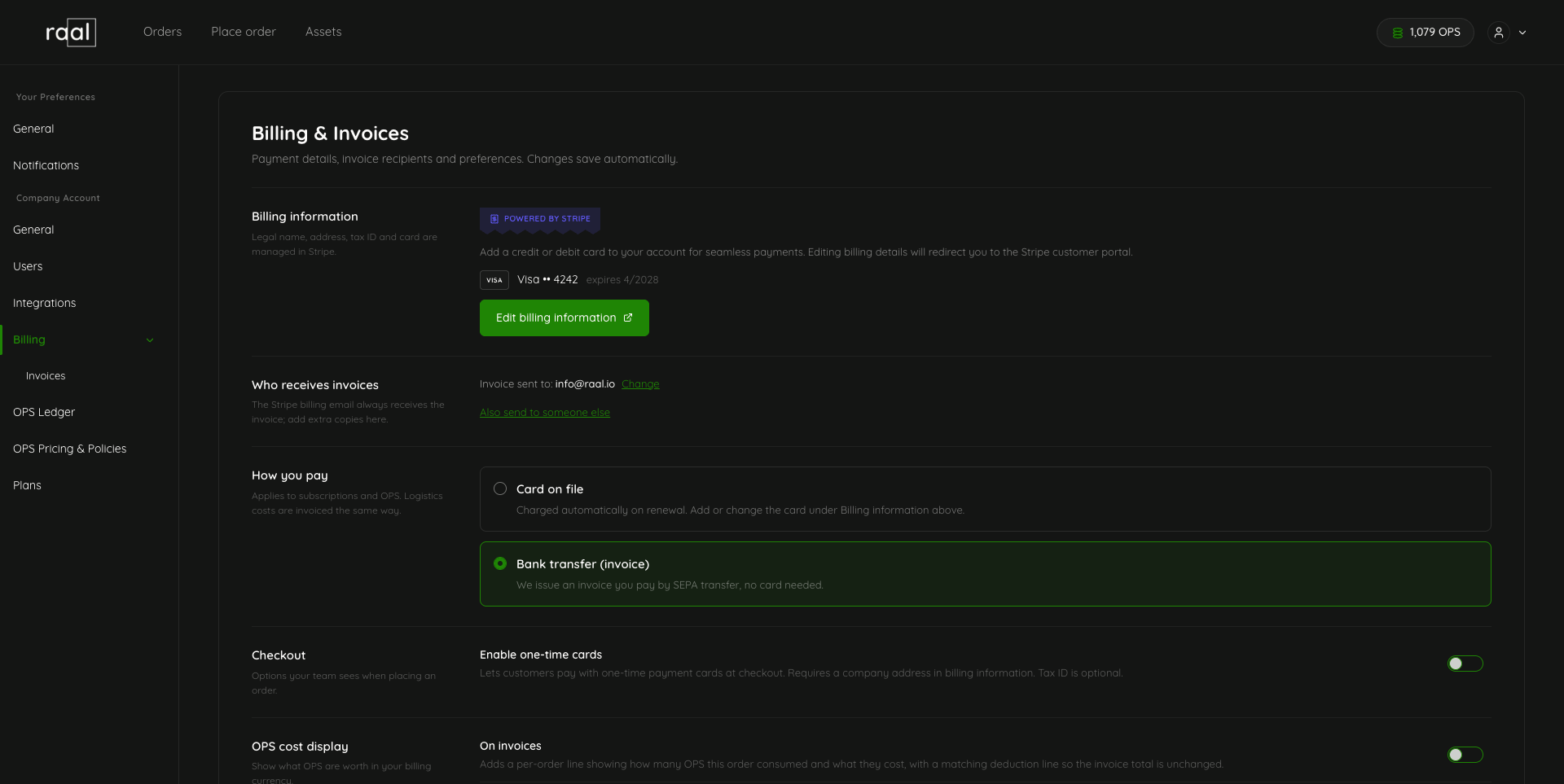
Edit legal name, address, or tax ID
Open Settings, then Billing under Company Account.
Click Edit billing information. You'll be redirected to the Stripe billing portal.
In Stripe, edit:
Billing information (legal name, registered address).
Tax IDs (VAT, GST, EIN, etc.).
Save in Stripe. Stripe validates tax IDs against the relevant registry (e.g. VIES for EU VAT).
Return to Raal. Subsequent invoices use the updated details immediately.
See "Setting up your billing details” for a full walkthrough.
The Billing page has no Save button. Every control on it saves the moment you change it, which is what the line under the heading means by "Changes save automatically".
Edit time zone
Open Settings, then General under Company Account.
Pick a time zone from the dropdown. Your browser's default is shown below the dropdown for reference.
Save. A toast confirms that dates and times will now be shown in the new zone.
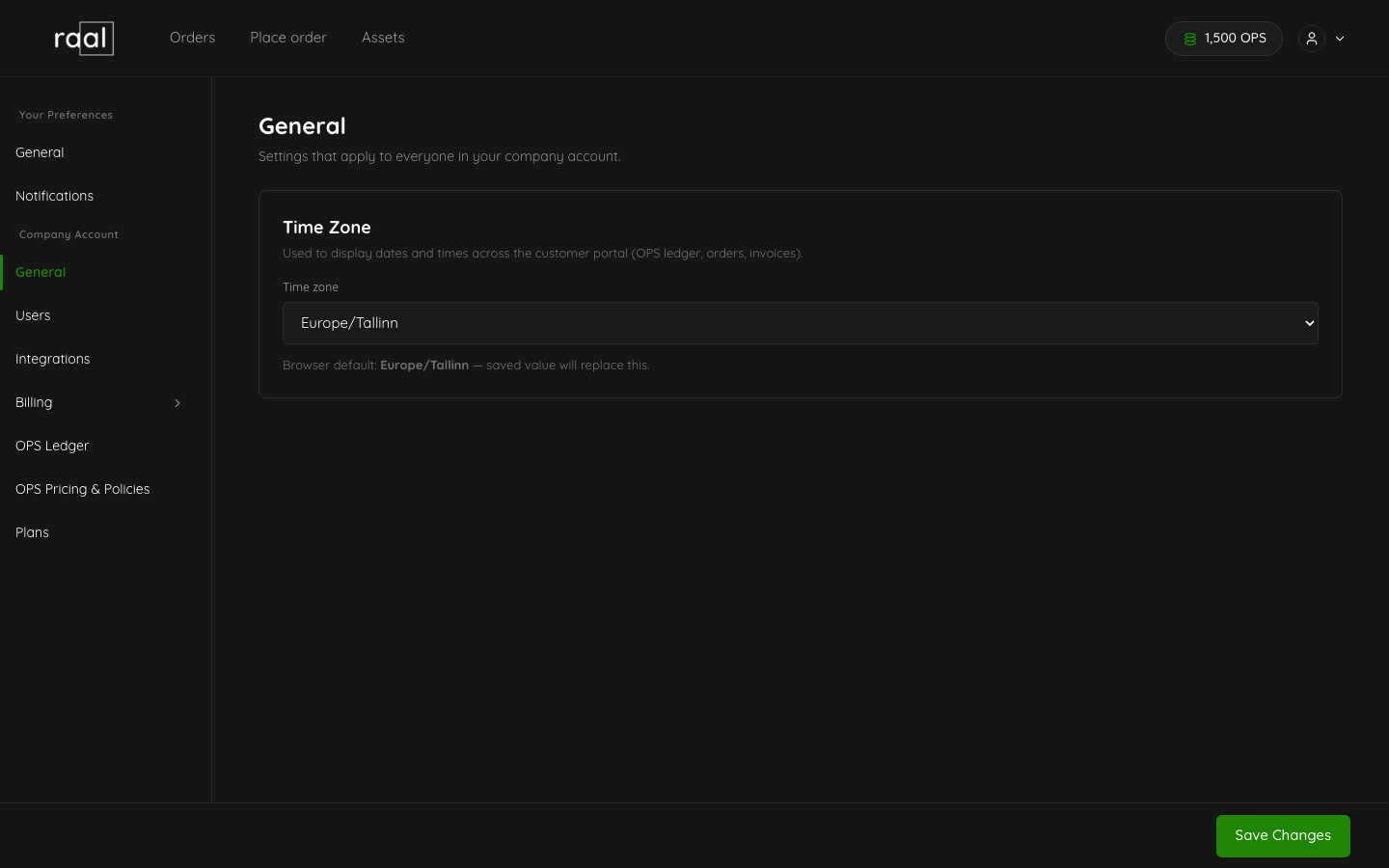
The time zone affects:
Dates and times in the OPS Ledger.
Timestamps on order timelines and comments.
"Scheduled for" labels (e.g. on pending downgrades).
All users in your company see times converted to the company time zone, regardless of where they're located.
Who can edit
Only Admin users see the Company Account part of Settings. Editors and Viewers see their own preferences only, and have no access to company-wide configuration.