Setting collection and delivery addresses
How to fill the two address cards, autofill them from saved details or BambooHR, and what Collection actually means.
Written By Andres Kõiva
Last updated 1 day ago
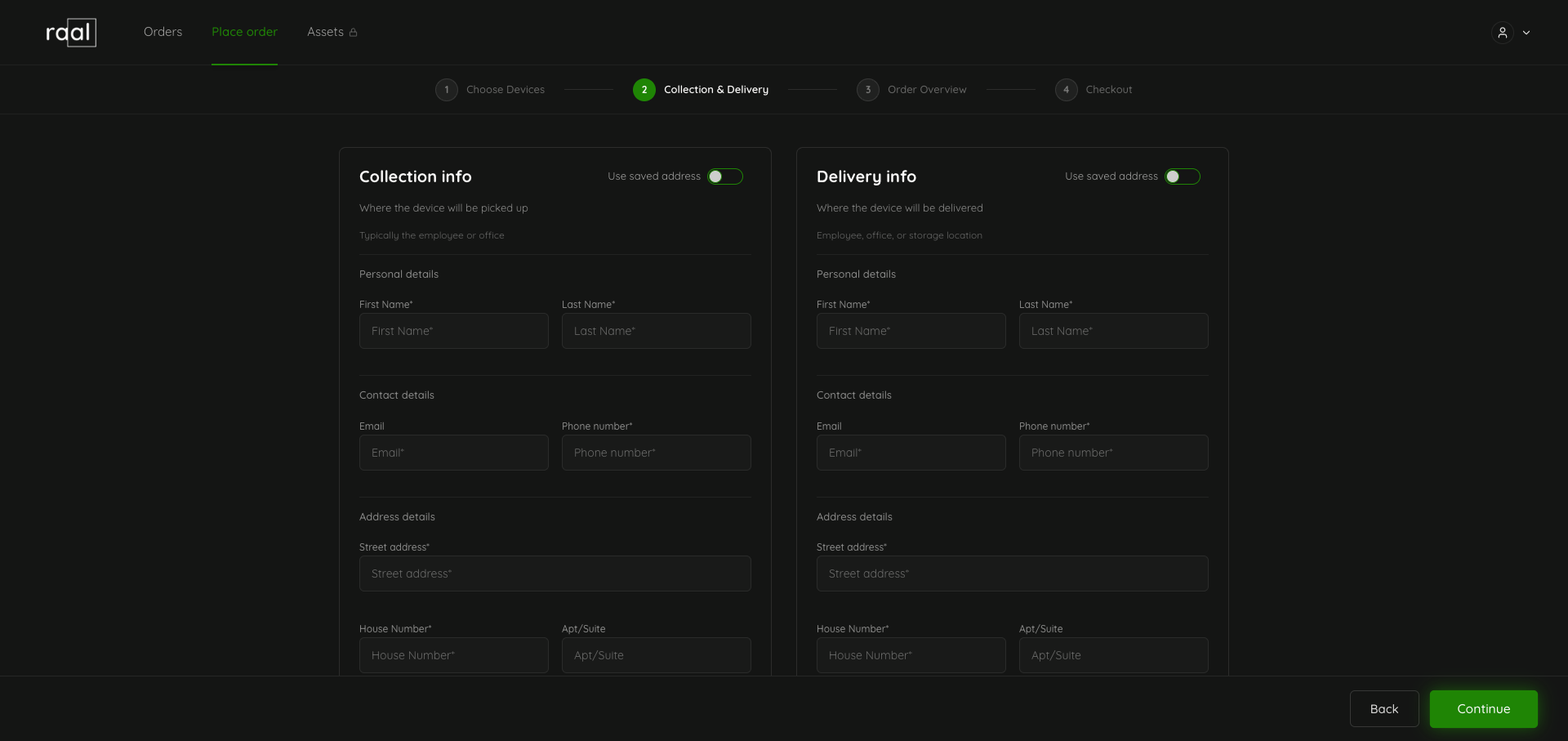
Step 2 of the order wizard collects two addresses: Collection info, where Raal picks the device up, and Delivery info, where it is going. Both cards have the same fields.
The fields
Required on both cards:
First name and last name.
Email. Raal sends pickup and delivery notifications here.
Phone number. The courier uses it schedule a pickup or drop off.
Street address and house number, which are two separate fields.
City, postal code, and country.
Apt/Suite is the only optional field.
Three ways to fill a card
Type it in
Standard form entry. As you type into Street address, address autocomplete suggests matches, and picking one fills in the city, postal code, and country.
Use saved address
The toggle at the top of each card fills it from your company's saved details. It is not only the address: the contact name, email, and phone are filled in too, so check those before continuing if the shipment is not going to or from you. Use it when you are shipping from or to your own office.
Autofill from BambooHR
If BambooHR is connected, start typing in the First Name field. Matching employees appear as suggestions, and picking one fills the address, phone, and email from BambooHR. See Connecting BambooHR.
What "Collection" actually means
The collection address is the physical pickup location, which is not always the person who owns the device:
Onboarding: collection is your office or warehouse, delivery is the new hire's home.
Offboarding: collection is the departing employee's home, delivery is your office.
The two cards are independent, so you can ship from any country Raal serves to any other. Note that the countries you pick here decide which device types stay available on Step 3, and whether you get a choice of Economy or Express. See Express vs Economy: when to use each.